🕒 BIOMETRIC INTEGRATION FOR ERPNext
👤 Sync attendance. 🔄 Automate logs. 📊 Keep employee check-ins accurate.
1. Overview
The Biometric Integration for ERPNext allows you to automatically sync attendance logs from your biometric device into ERPNext. No more manual CSV uploads, no spreadsheet cleaning, and no missed punch-ins/out. All check-ins flow directly into the ERPNext Attendance doctype or Check-in doctype based on configuration.
It works with biometric machines that support API-based log retrieval, enabling clean and reliable syncing for HR operations, payroll, and compliance workflows.
2. What Problems Does It Solve?
- ⚠️ Manual attendance uploads every day — ✅ Automated log syncing.
- ⚠️ Incorrect or missing employee punches — ✅ Real-time or scheduled retrieval ensures nothing is missed.
- ⚠️ Inconsistent behavior between devices — ✅ Unified API wrapper ensures consistent processing logic.
- ⚠️ Time wasted consolidating logs from multiple machines — ✅ Multi-device support from one screen.
- ⚠️ No audit trail of sync operations — ✅ Biometric Sync Log with detailed entries.
- ⚠️ Human errors in attendance marking — ✅ Automated creation of check-ins/attendance with validations.
3. Key Benefits
-
🌟 Full automation
💬 Attendance logs move from biometric device → ERPNext without manual steps. -
🌟 Reliable syncing engine
💬 Scheduler-based background jobs ensure regular updates without user action. -
🌟 Employee mapping & validation
💬 Device user IDs are mapped to ERPNext Employee records for accurate attendance. -
🌟 Comprehensive sync history
💬 Every sync run is logged including counts, timestamps, errors, and device responses. -
🌟 Supports manual & automatic sync
💬 HR can trigger a sync anytime or rely fully on scheduled background jobs.
4. Core Features
-
✔ Biometric Sync Settings
Central settings page to configure device URL, username/password, sync interval, and employee mapping behavior. -
✔ Automatic scheduled sync
A scheduler job runs hourly/daily (configurable) and pulls new attendance logs from the biometric device API. -
✔ Manual “Sync Now” action for HR
HR users can trigger a manual sync from Biometric Sync Settings for real-time updates. -
✔ Employee mapping engine
Device user IDs are matched to ERPNext employees using mapping rules, with fallback error handling for unmapped IDs. -
✔ Attendance or Check-in creation
Supports both ERPNext Attendance doctype creation and Check-in entries depending on your HR workflow. -
✔ Biometric Sync Log
Every sync run logs request/response details, timestamps, employee count, and success/failure info for auditing.
5. How It Works
-
🔗 Connect your biometric device
Enter device base URL, username, password, and test connection from Biometric Sync Settings. -
🔄 Scheduler or HR triggers sync
The app calls the device API using secure authentication and fetches all recent logs. -
👥 Map device user IDs to employees
The system matches device IDs to ERPNext Employee records and prepares validated check-ins/attendance. -
🧮 Create check-ins or attendance automatically
Each log becomes an ERPNext Check-in or Attendance entry with correct time and employee reference. -
📊 Sync Log records everything
A Biometric Sync Log entry is created with status, totals, duration, errors, and device response.
6. Common Use Cases
- 👥 Daily employee attendance automation
- 🏭 Factories & warehouses needing accurate time logs
- 🧾 HR teams preparing payroll based on attendance
- 🏢 Multi-location companies with multiple biometric devices
- 🔄 Real-time shift timing or overtime monitoring
7. Who Is It For?
- 👨💼 HR Managers
- 📊 Payroll Teams
- 🏭 Operations & Factory Supervisors
- 🧑💻 ERPNext Administrators
- 🏢 Multi-location Businesses
8. Setup & Onboarding
- 🔧 Open Biometric Sync Settings.
- 🔐 Enter device URL, username, password.
- 🧪 Test the connection to verify device API access.
- 👥 Ensure employees have correct biometric user IDs assigned.
- ⏰ Configure scheduler interval for automatic syncing.
- 🔄 Perform a test sync using the “Sync Now” button.
- 📊 Review created Check-ins/Attendance and the Sync Log.
9. Technical Details (Admins Only)
🧩 Architecture
– API wrapper provides a consistent interface to different biometric device models.
– Scheduled background job performs incremental syncing and processes new device events.
– Sync Log doctype stores request/response details and run metadata for auditing and troubleshooting.
– Settings doctype holds device credentials, sync interval and mapping configuration.
🔐 Authentication
– Device credentials are stored securely in protected fields.
– Requests use basic or token-based auth depending on device capabilities.
– A communication wrapper handles retries, backoff and standardized error messages.
📡 API Communication
– Robust handling for timeouts and unreachable devices with clear log entries.
– Response parsing normalizes different device payloads into a common event schema.
– Delta (last-seen) syncing prevents duplicate imports and keeps performance predictable.
🗄 Staging & Mapping
– Raw device events are persisted to a staging table before transformation.
– Mapping rules convert device user IDs to ERPNext Employee records; unmatched IDs are flagged for review.
– Staged events include device id, timestamp, event type, and raw payload for debugging.
🧮 Attendance Processing
– Normalizes punches into check-in/out or Attendance entries according to configured rules (rounding, shift boundaries).
– Duplicate protection prevents re-creation of identical entries on re-runs.
– Optionally link imported attendance to payroll/time-sheet workflows.
🔁 Retry & Logging
– Each sync run creates a log entry with totals, duration and any error messages.
– Failed API calls and transformation errors are visible in the Sync Log and can be retried from the UI.
– Logs are retained for audit and troubleshooting based on your retention policy.
⚙️ Scalability & Performance
– Designed to handle multiple devices and high-frequency punches using background workers and pagination.
– Incremental fetch keeps per-run work small and predictable.
10. Device & WebApp Pre-Configuration (Mandatory Before ERPNext Setup)
Before ERPNext can sync attendance data, your biometric device and the eSSL web application (eBioServer or eTimeTrackLite) must be configured correctly. This is a mandatory step for successful communication between ERPNext and the device.
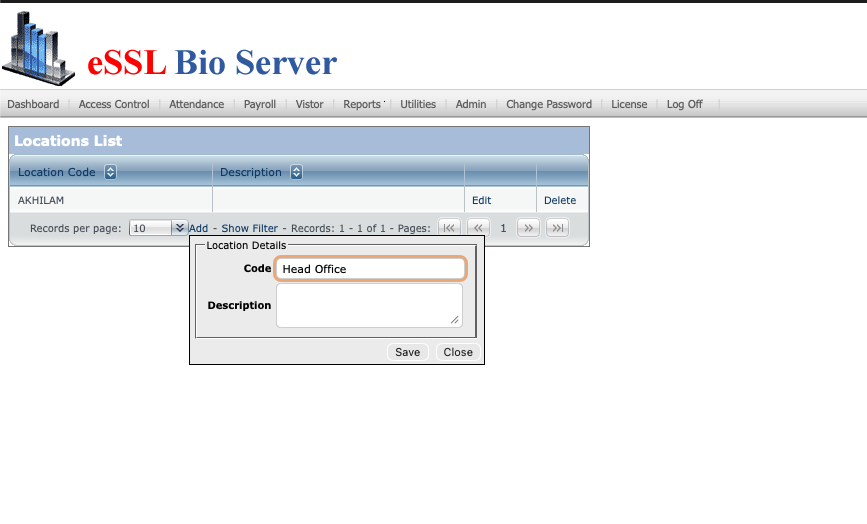
🏷️ Create Location in WebApp
In eBioServer, go to Locations and create a location record. This location must match the location you select in ERPNext’s Biometric Sync Settings.
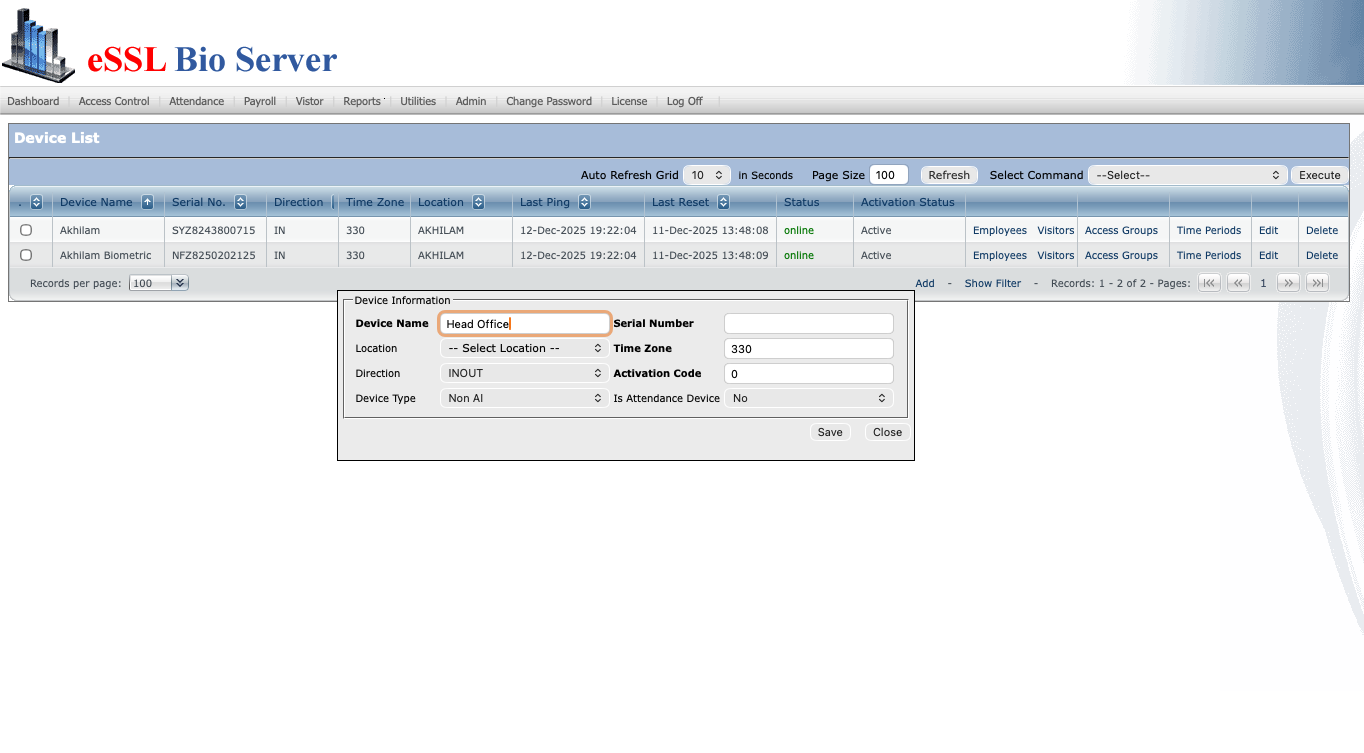
🔧 Add Device Entry in WebApp
Under Device List, create a new device with:
– Device Name
– Serial Number
– Location
– Activation Code
After saving, the device becomes registered with the server.
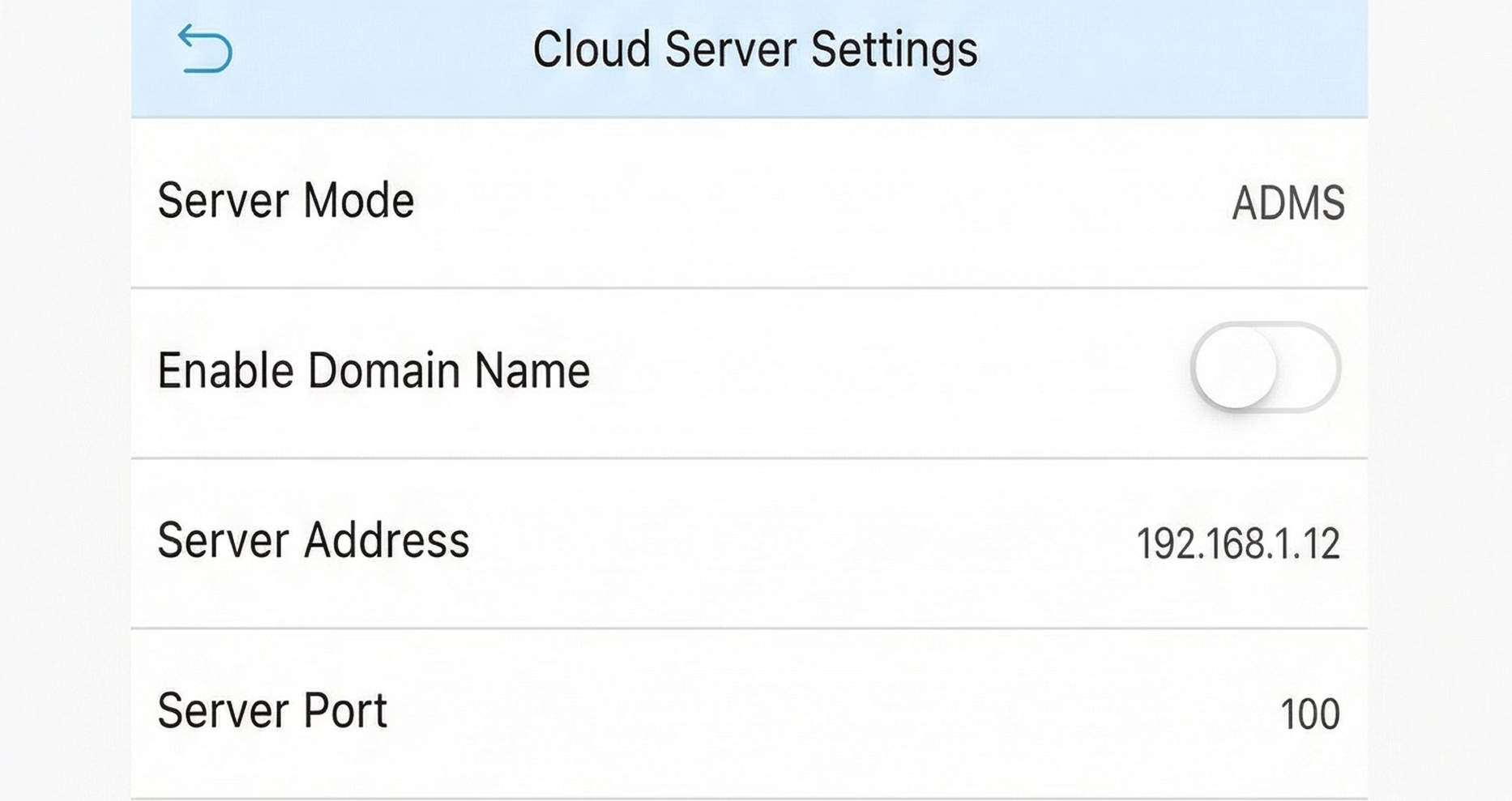
🌐 Configure Communication Settings on the Device
On the biometric device, open the network / cloud settings and set:
– Server Mode: ADMS
– Server Address: Public / static / VPN IP of your eBioServer
– Server Port: 100 (default)
– Enable domain/APN only if required
Restart the device after saving the settings.
📶 Verify Device Online Status
Once the device restarts, it should display Online in the webapp dashboard. If not, recheck network, firewall, IP and port settings.
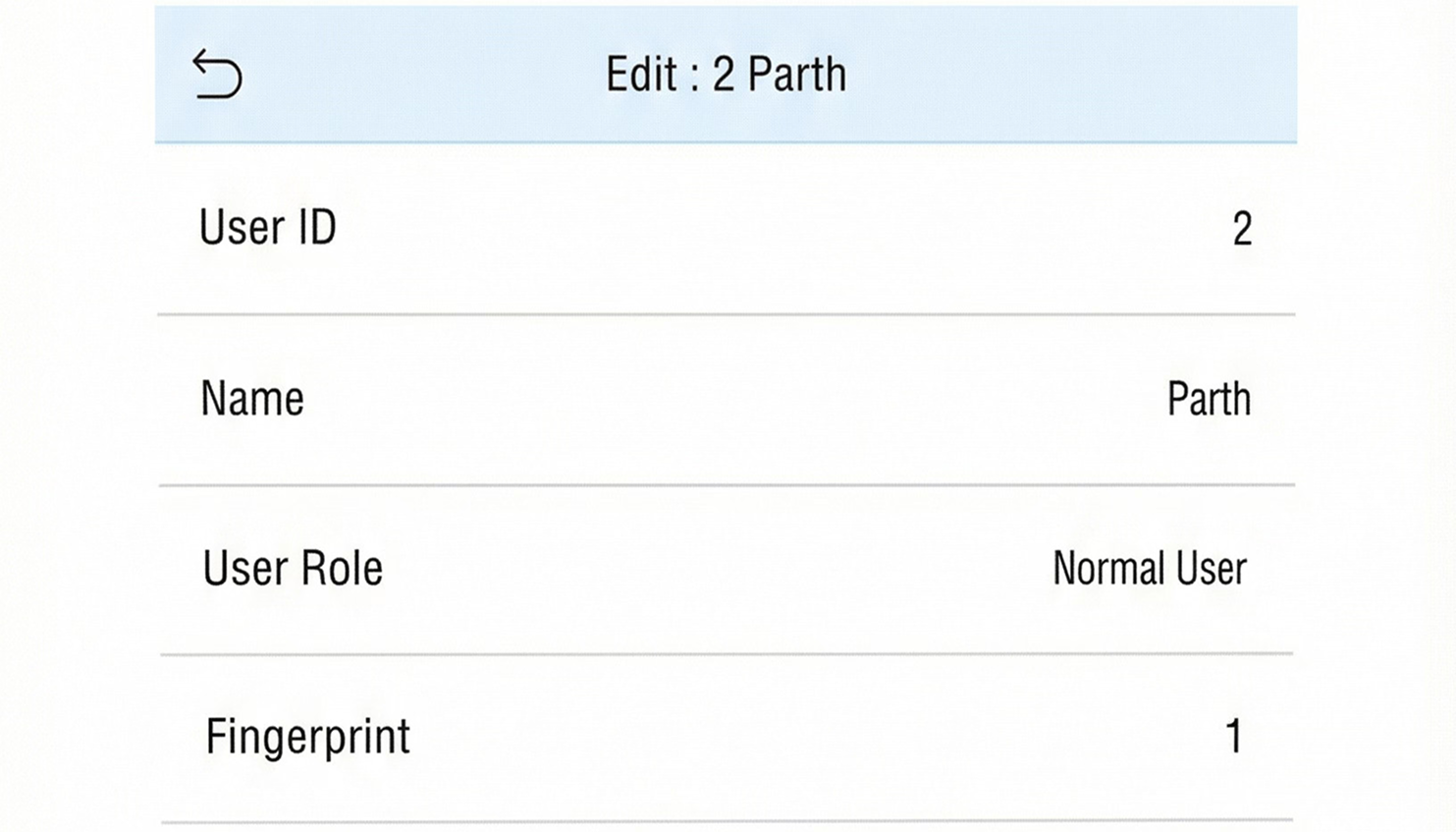
👤 Enroll Employees on the Device
Register each employee in the device with:
– Unique User ID
– Name
– Fingerprint and/or Face template
Verify the enrollment inside the device UI.
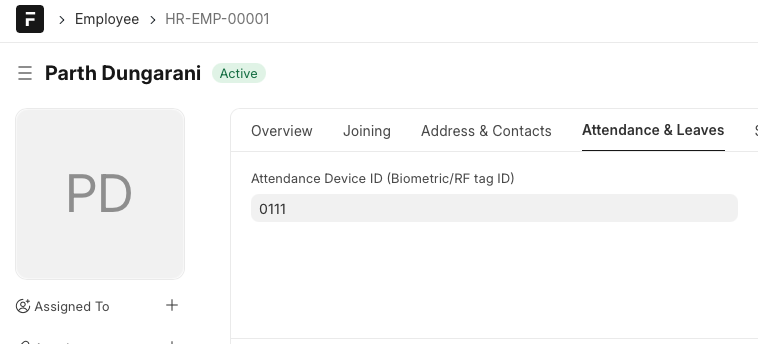
Map Device User ID inside ERPNext Employee
After confirming enrollment inside the device, open the Employee record in ERPNext and map the exact User ID to ensure correct attendance syncing.
- Navigate to
Employee → Attendance & Leaves - Enter the same Attendance Device ID (Biometric/RF Tag ID) shown in the biometric device (e.g.,
0111) - Save the Employee record — this mapping is mandatory for proper sync
Configure Biometric Sync Settings in ERPNext
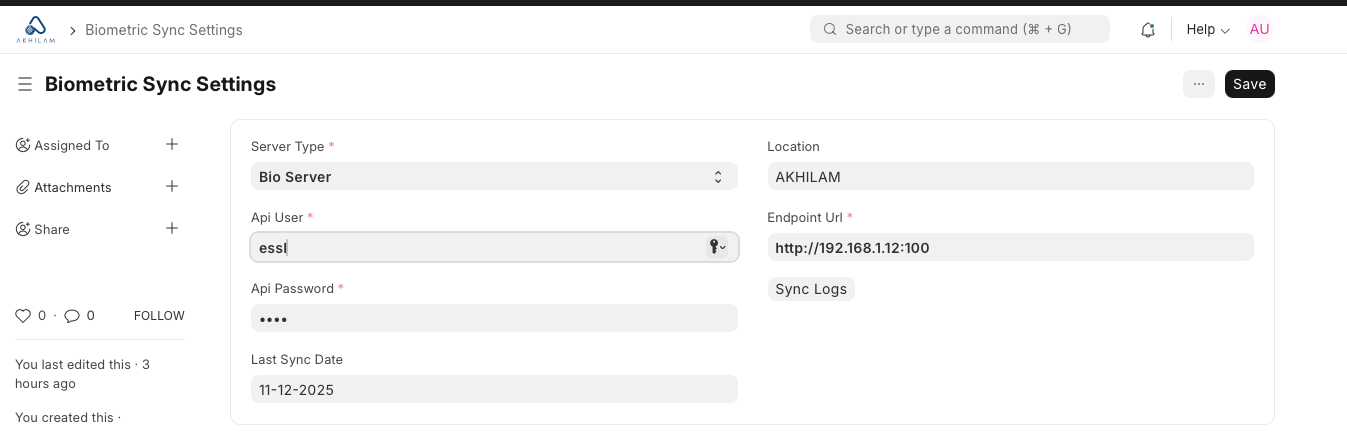
Next, configure the connection between ERPNext and the biometric webapp (eSSL Bio Server / eTimeTrackLite). These settings define how the sync engine communicates with the device server.
- Open:
Home → Biometric Integration → Biometric Sync Settings - Server Type: Select Bio Server or appropriate server type
- Location: Choose the mapped location created earlier (example:
AKHILAM) - API User: Enter the webapp login username
- API Password: Enter the webapp login password
- Endpoint URL: Include full URL + port, e.g.
http://192.168.1.12:100 - Click Save to store the configuration
Test Connection & Run Initial Sync
- Click Test Connection to verify ERPNext → Webapp communication
- If successful, click Sync Now to fetch logs instantly
- The system retrieves:
- Device punch logs
- Employee IDs & timestamps
- Mapped entries → Check-in / Attendance
- Review the results in Biometric Sync Log
Common Issues & Fixes
- Device not reachable: Check server IP, firewall, routing, port configuration
- Device shows offline: Confirm device → server communication, restart device
- Logs appear but employee missing: Ensure correct mapping of Attendance Device ID in the Employee record
- Duplicate entries: ERPNext prevents duplicates unless the device sends repeated timestamps
11. Frequently Asked Questions
-
❓ Does this integration work with multiple biometric devices?
✅ Yes — you can configure multiple devices, each with separate sync settings. -
❓ How often does the sync run?
✅ The sync scheduler runs based on your configured interval (every few minutes, hourly, etc.). -
❓ What if a device is offline?
✅ The system retries gracefully and logs the failure in the Sync Log with a clear message. -
❓ Can duplicate attendance be created?
❌ No — duplicate protection prevents creation of repeated check-ins or attendance entries. -
❓ What happens if an employee ID doesn’t match?
⚠️ The event is imported into staging and flagged for review until mapped properly. -
❓ Does this overwrite existing attendance?
❌ Never — it only inserts new check-ins or attendance entries.
12. Security & Data Handling
-
🔐 Secure storage of device credentials
Authentication details are stored in protected fields and never exposed to end users. -
🔒 HTTPS communication
API calls to devices or middleware use secure channels where supported. -
🧾 Full audit trail of sync runs
Each sync stores status, timestamps, failures, and device metadata in the Sync Log. -
🚫 No external data sharing
Attendance data stays entirely within your ERPNext system. -
🧩 Permission-controlled access
Only authorized users can access sync settings, logs, or device credentials.
13. Support
📩 Email: support@akhilaminc.com
🌐 Or contact us via our website for implementation or customizations.